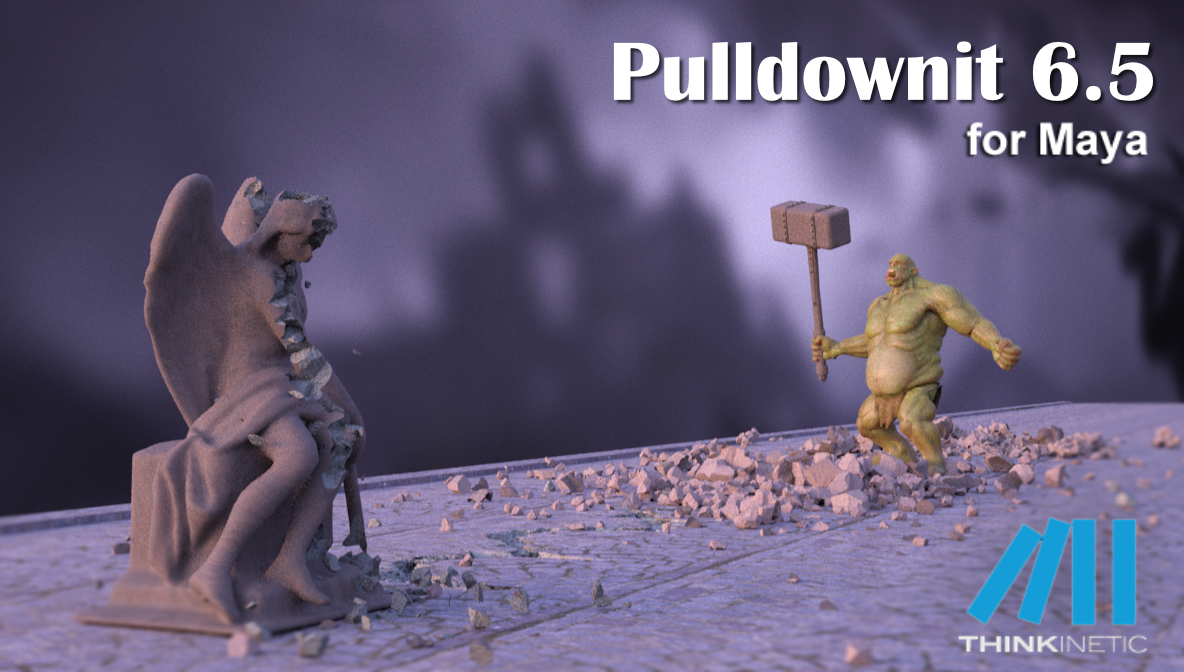
We are thrilled to announce Pulldownit plug-in for Maya gets a non-destructive workflow, allowing to sculpt fractures over the model freely, visually chipping the areas you want and computing dynamics immediately, or modifying the original model transform or shape and its associated fracture body will update accordingly, you can undo latest changes or revert to original shattering at any moment.
Maya mesh modifiers are supported, there are only a few known limitations with some modifiers that you can review in the Maya Script Editor Pane.
In addition now is possible to increase or reduce fracture clusters size, alongside the Edge Fracture feature introduced in v 6.0 makes very easy to adjust perfectly detaching or exploding areas.
There are also several useful UI improvements you can review below and you can check the whole list of fixes in the Pulldownit version logs page:
Read the full list of fixes in the Pulldownit web site version logs
Licensed users can already access Pulldownit 6.5 from his account and there is a demo version for Maya 2026 in the Thinkinetic web site.
Shatter New Features
New Non-Destructive shatter workflow, reshatter areas, change the original model transform or shape and recompute dynamics immediately, Maya Mesh modifiers are supported.
Shatter it supports Xref Objects, Xref objects can be shattered seamlessly and are supported by non-destructive shatter workflow(with the inherent limitations of using Xref objects in a Maya scene).
New Reshatter option “Set Current as Base Breakage”, this new option allows to set current shattering as base breakage, you can revert shattering to base breakage at any moment.
Dynamics New Features
New ability to resize fracture clusters, now you can reduce or increase fracture cluster size just by clicking in the intended buttons and compute simulation immediately.
UI Enhancements
New Shatter it window layout, making it more intuitive by showing only parameters affecting the selected shatter style.
New Shatter it SwatchDisplayPort, this new visual widget displays an icon of the selected shatter group cut material, you can access cut material properties just by clicking over it.
New Shatter it “Show/Hide source node” button, after clicking on it you can transform source node or modify its mesh freely.
New Shatter it “Refresh Breakage from Source” button, by clicking on it shattering is refreshed from the current source node transform and shape.
New Shatter it “Revert to Base Shape” button, by clicking on it source node shape is reverted to original state.
New Reshatter option “Update Base Shape”, by clicking on it source node base shape is updated to current state.
 KineticThoughts